
Light and Dark Themes
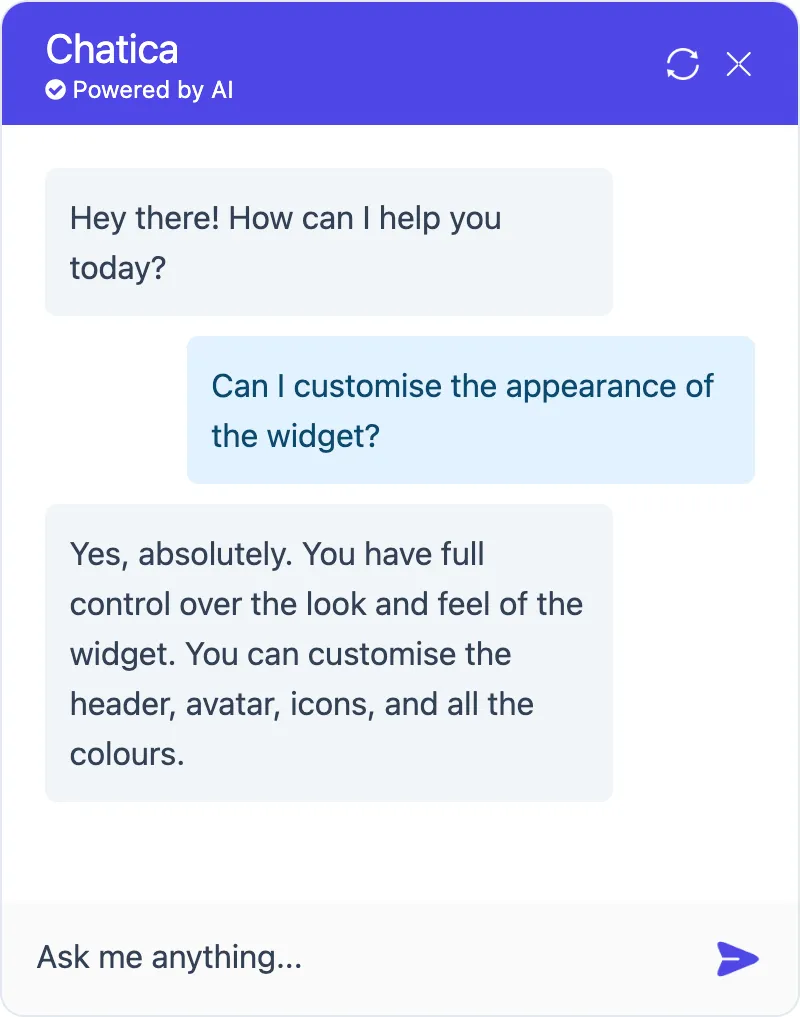
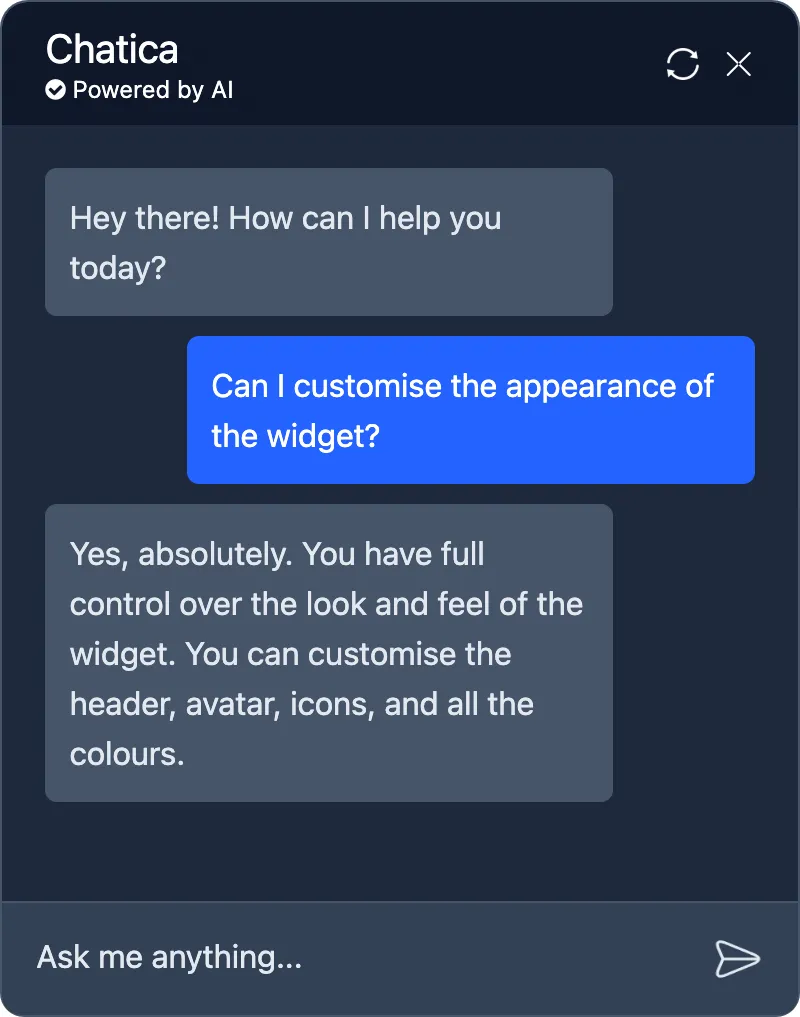
When you create a new Agent, it starts with a light-style theme by default. But every color is fully customisable, so you can design your own look, whether that’s a dark theme, a light theme, or something entirely unique.
How to customise your widget
Section titled “How to customise your widget”- Go to My AI Agents
- Select the Agent you want to customise
- Open the Appearance tab
- Adjust the colours and icon to match your brand
- Click Save to apply your changes
Changing the send icon
Section titled “Changing the send icon”Upload your own icon image in your Agent’s Appearance tab. You can use your own design, or an icon from your existing design system (e.g. Font Awesome) to keep things on-brand.
Want the exact colours from those examples?
Section titled “Want the exact colours from those examples?”| Light Theme | Dark Theme | |
|---|---|---|
| Header Background | rgb(79, 70, 229) |
rgb(15, 23, 42) |
| Header Text | rgb(255, 255, 255) |
rgb(255, 255, 255) |
| User Message Background | rgb(224, 242, 254) |
rgb(37, 99, 235) |
| User Message Text | rgb(12, 74, 110) |
rgb(255, 255, 255) |
| Agent Message Background | rgb(241, 245, 249) |
rgb(71, 85, 105) |
| Agent Message Text | rgb(51, 65, 85) |
rgb(226, 232, 240) |
| Input Text | rgb(51, 65, 85) |
rgb(226, 232, 240) |
| Input Background | rgb(250, 250, 250) |
rgb(51, 65, 85) |
| Widget Background | rgb(255, 255, 255) |
rgb(30, 41, 59) |
| Widget Border | rgb(226, 232, 240) |
rgb(71, 85, 105) |